OpenClaw Installation and Configuration Guide:
The First Step to Smart Agents and Automation
This guide details the two mainstream installation methods, the initialization process, and core operational commands for OpenClaw. Whether you are a beginner looking for a one-click setup or a developer with Node.js experience, you can kickstart your highly efficient AI automation journey with just a few commands.
The 4 things to know before you begin
Recommended: one-click script install
For most users, a single command is enough. You do not need to prepare Node.js in advance because the installer handles the environment check for you.
Developer path: package manager install
If you already work inside a Node.js environment, you can install OpenClaw globally through npm or pnpm instead.
The unified wizard now covers model, Telegram, and safety
In v3.22+, Telegram setup, allowFrom whitelisting, and the basic add-on flow now live inside one onboarding wizard.
A small set of commands covers daily use
From dashboard and logs to skills and updates, a short CLI list is enough for most day-to-day operations.
Option 1: One-Click Script Installation (Recommended)
This is the simplest method and the top choice for most users. You do not need to prepare any runtime environment in advance; the script will automatically detect and install Node.js for you. If you want to automate the execution, you can append a flag to skip the onboarding wizard.
Using Bash Script
Downloads the CLI, completes the global installation, and launches the configuration wizard.
curl -fsSL https://openclaw.ai/install.sh | bashUsing PowerShell Script
Automatically detects the Node environment and installs the CLI. The example parameter below skips the onboarding wizard. On Windows, it is best to open your terminal in Administrator mode to avoid permission issues later on.
& ([scriptblock]::Create((iwr -useb https://openclaw.ai/install.ps1))) -NoOnboardOption 2 Prerequisites: Environment Requirements
If you prefer not to use the one-click script and want to go the package manager route directly, please ensure your system meets the baseline requirements.
Required
- Node.js>= 22.0.0
- Package Managernpm >= 10.0.0 (or pnpm >= 8.0.0)
Recommended
- Recommended SpecsLinux, macOS, or Windows 10/11
- HardwareAt least 8GB RAM & 2GB available storage
Verify current environment
node --version # Should display v22.x.x or higher
npm --version  # Should display 10.x.x or higher
Package Manager Installation (For Developers)
If you are familiar with frontend development environments and already have Node installed, you can choose any of the following methods to install OpenClaw globally.
npm
The simplest and most direct option for most developers.
npm install -g openclaw@latestpnpm
If pnpm is already part of your workflow, install it globally first and then use it to install OpenClaw.
npm install -g pnpm
pnpm add -g openclaw@latestVerify Installation
Run the following command. If it returns the version number, the installation was successful.
openclaw --versionQuick Start: Detailed 3-Step Configuration Guide (Updated for v3.22+)
Once the core program is installed, you need to configure your AI model, communication channels, and security settings. The latest v3.22+ release folds Telegram setup and the security whitelist directly into the unified wizard, so you no longer need separate channel-add commands.
Prerequisites
- Completed OpenClaw installation (via script or package manager).
- Have at least one API Key ready (for example OpenAI, DeepSeek, or Claude).
- Have a messaging platform account ready (Telegram, Discord, Feishu, and so on).
Run the Onboard Wizard
Execute the following command in your terminal to launch the interactive configuration hub:
openclaw onboard --install-daemon1. Confirm Security Warning
The new version significantly strengthens the safety model. As soon as you run the command, you will see a full-screen Security warning.
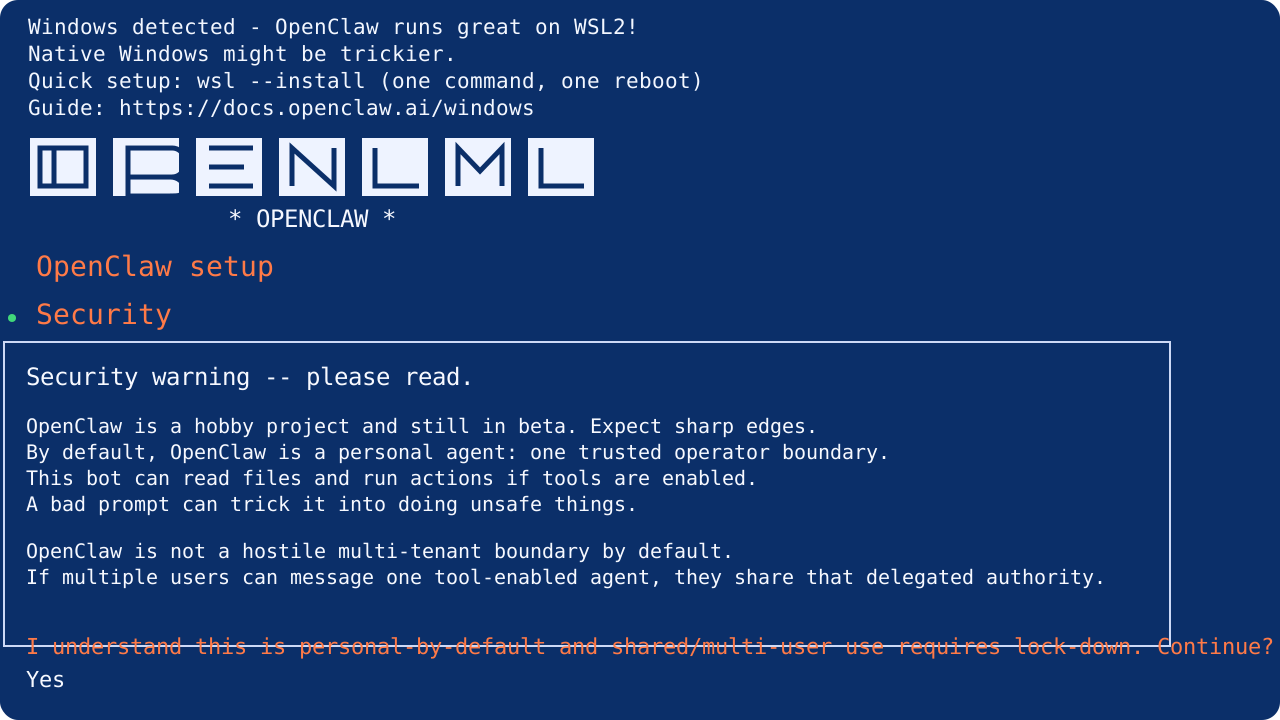
- Use the arrow keys to select Yes and press Enter before proceeding.
- If you see Existing config detected, it means a previous installation was found. In most cases, simply select Use existing values.
- This screen is expected. It is a safety confirmation, not an installation failure.
2. Select Setup Mode and AI Model
Choose QuickStart. Then select your preferred model provider from the list and paste the corresponding API Key. If you use a custom gateway or a special subscription, scroll to the bottom, choose Skip for now, and configure it later through the CLI.
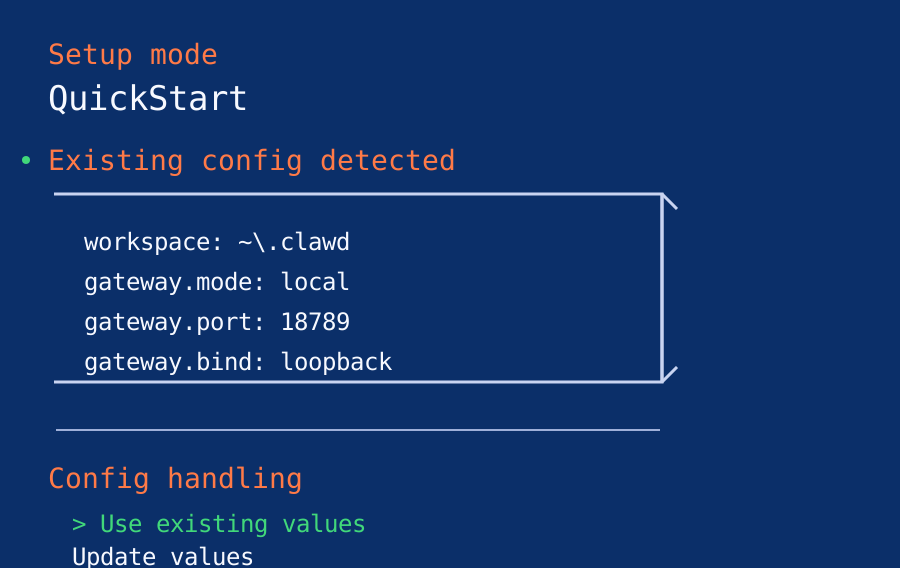
- Note: if this is your first install, you will usually not see the historical config prompt above. Instead, the wizard will take you straight to the basic selection screen below.
- If you are reinstalling or upgrading, choosing Use existing values is usually the fastest way forward.
? Select setup mode:
  > QuickStart
    Custom

? Select AI model provider:
  > MiniMax
    Kimi
Skip for nowConnect Telegram and Configure the Security Whitelist
The latest wizard includes Telegram binding and allowFrom security setup directly inside the same flow.
1. Get Your Bot Token
Search for @BotFather in Telegram and send the /newbot command to create a new bot.
- Set the bot name and unique username.
- Copy the generated Bot Token.
2. Bind and Store Credentials in the Wizard
In the Select channel list, choose Telegram (Bot API) and press Enter. When asked how to provide the token, select Enter Telegram bot token, then paste your Bot Token.
3. Configure the Super Whitelist (allowFrom)
To prevent others from abusing your bot and burning your API quota, the system requires you to bind a single allowed user.
- When prompted for the Telegram user id, enter your Telegram numeric ID or your username with an @.
- A quick way is to search for @getidsbot in Telegram and send it a message to retrieve your numeric ID.
Add-ons and Launching the Web UI
After the whitelist is configured, the wizard will ask about a few final advanced options.
Recommended choices
- Web search: Select DuckDuckGo Search (key-free).
- Hooks: Beginners should leave the default [*] Skip for now selected.
- Hatch your bot: Select Open the Web UI if you want to see the dashboard immediately.
Open it later if you prefer
If you choose Do this later, you can launch the dashboard any time afterward from the terminal:
openclaw dashboardA common warning near the end of setup
Some users run into a telegram webhook cleanup warning near the very end of the flow. This usually points to a temporary network issue or webhook cleanup failure, not a completely broken installation.
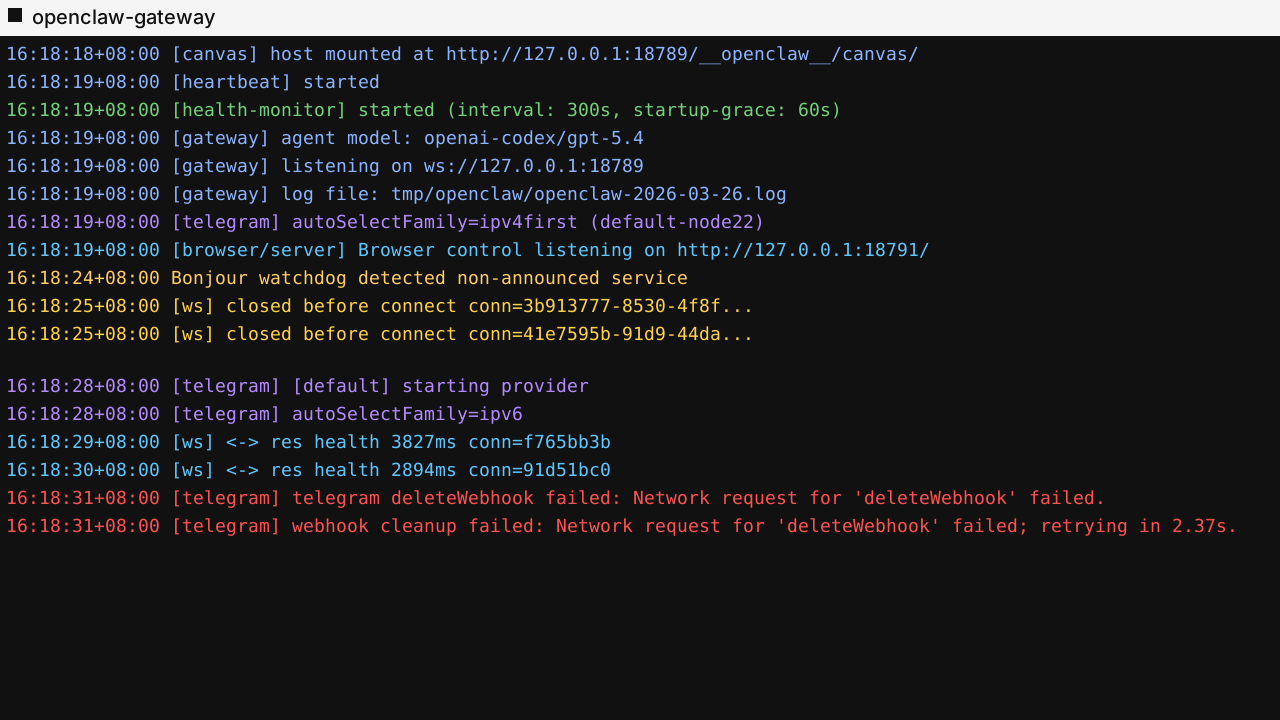
- Check your Bot Token, allowFrom value, and local network connectivity first.
- In many cases, rerunning the step or trying again a little later is enough.
Test Your First Conversation
Now it is time to verify the setup. If everything is configured correctly, your AI should respond right away.
Method 1: Test in Telegram
- Open Telegram.
- Find your newly created bot.
- Send the message: "Hello, OpenClaw!"
- If the bot replies, the setup is successful.
Method 2: Test via Native CLI
You can also bypass chat apps entirely and interact with the agent directly in your current terminal:
openclaw agent --message "Hello, please introduce yourself." --thinking highSummary of Daily Commands
These are the CLI commands you will use most often. Once you know this small set, daily operation is straightforward.
Service and Management
openclaw dashboard # Launch and open the Web Dashboard
openclaw status    # Check running status
openclaw logs      # View real-time logs
openclaw doctor    # Diagnose and fix environment or startup issues
openclaw stop      # Stop the background service
Agent Interaction
openclaw agent --message "Hello" --thinking high # Test chat with the agent
openclaw agents list                           # View the list of agents
openclaw agents add <agent-name>               # Add a new agent
Skills and Updates
openclaw skills list                           # View installed skills
npx clawhub@latest install <skill-name>        # Install a new skill from ClawHub
openclaw update                                # Update OpenClaw to the latest version
Explore More Cases
Custom AI Assistant
Give your AI assistant a soul by configuring its personality, context, and operational rules.
Connect Email and Triage the Inbox
Use Gmail API and OAuth to let Openclaw read emails, prioritize them, and draft replies.
Openclaw X
Use Bird Skill with your browser session to turn Openclaw X into one workflow for posting, replying, monitoring mentions, reading threads, and AI-driven X operations.
Openclaw Subscription
Connect your GPT, Gemini, and Claude plans to Openclaw so Openclaw Codex, Openclaw Gemini, and Openclaw Claude work without extra API token billing.
Openclaw Skills Starter
Learn how to turn repeated work into reusable skills so AI can execute with stable steps, rules, and guardrails.
Openclaw Browser
Learn the two Openclaw Browser starting routes: Playwright MCP and browser-use, and how each one should be set up.
Save Money With AI Negotiation
See how OpenClaw searched inventory, contacted dealerships, and negotiated across browser, email, and messaging channels to save $4,200.
Openclaw GitHub Workflow
See how Openclaw can write code, open PRs, run code reviews, triage issues, and generate changelogs — handing every repetitive GitHub task to AI autonomously.
AI Job Hunter: Resumes, Emails & Follow-ups
See how Openclaw searches job boards across the web, tailors resumes and cover letters, sends bulk personalized applications, and triages inbox replies — automating the most repetitive parts of job hunting.
AI Rental Agent: Search, Compare & Negotiate
See how Openclaw searches listings across platforms, compares prices side by side, sends bulk inquiry messages, and negotiates rent with landlords — automating the most tedious parts of apartment hunting.
24/7 SRE & DevOps Agent
See how Openclaw securely connects to cloud servers, analyzes error logs, updates config, and recovers failed deploys to keep production healthy around the clock.
Personal Orchestration Layer
See how Openclaw coordinates health data, smart home devices, meal planning, and daily schedules to run your personal systems as one workflow.