Openclaw Browser:
start with these two routes
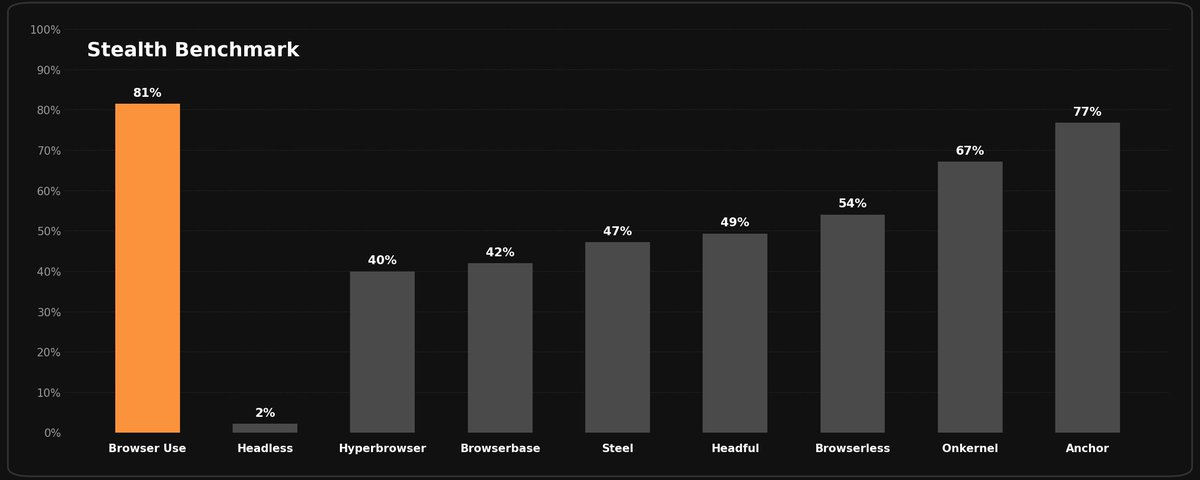
This page skips generic browser automation concepts and focuses on the two most practical routes for Openclaw Browser. Currently, browser-use demonstrates the strongest overall performance and is our top recommendation, while Playwright MCP serves as a stable, fixed alternative.
A separate scoring system for browser operations
How to choose between the two
The decision is simple: browser-use is the stronger, more adaptable choice right now. Only rely on Playwright MCP as a backup when your task must be absolutely fixed and scripted.
browser-use
Recommended · StrongerIt acts as an AI browser assistant with exceptional capability answering to natural language commands.
Best for: Almost all general proxy tasks, semi-structured pages, and scenarios where the AI must understand the goal and take flexible actions.
Install focus: Complete three steps: run the one-line installer, add the skill, and configure the MCP.
Keep in mind: It relies on the underlying model, though current scoring systems prove it is the most effective approach.
Playwright MCP
Backup · SteadierAn engineering-oriented backup route. Actions follow strict scripted logic.
Best for: Mission-critical exact repetition formatting, static background process clicks.
Install focus: Simply ask Openclaw to install and confirm its setup.
Keep in mind: Less flexible. You must manually maintain elements and flows if the page updates.
Route 1: browser-use (Recommended, stronger performance)
If you prefer describing the task to AI instead of defining many rigid steps first, browser-use will feel more intuitive. It is designed to inspect pages, understand them, and then continue operating.
When to choose browser-use
Choose browser-use when page elements are less stable or when you would rather describe a goal than hard-code many browser actions.
It is not zero-config, though. You need to follow a sequence: install the CLI, hook up the skill, and map the MCP configuration.
How to install and connect it
One-Line Installation
macOS / Linux users can run the official install script directly. On Windows, use PowerShell and prefer installing browser-use through uv to avoid hard-coded path conflicts.
# macOS / Linux (在终端运行):
curl -fsSL https://browser-use.com/cli/install.sh | bash

# Windows (在 PowerShell 运行):
# 推荐通过 uv 包管理器直接安装,避免环境路径冲突:
uv tool install browser-useInstall the Skill
Installing the official skill makes your agent understand how to execute browser-use commands better.
npx skills add https://github.com/browser-use/browser-use --skill browser-useConfigure MCP and Environment Variables
Finally, bridge the capability into your config file. Note that this example uses your own custom API (e.g., OpenRouter). You can also use the official browser-use API.
[mcp_servers.browser_use]
# macOS users may prefer an absolute path such as "/opt/homebrew/bin/uvx"
# Windows users should ensure uv is already in PATH and can use "uvx"
command = "uvx"
args = ["--python", "3.13","--from", "browser-use[cli]", "browser-use", "--mcp"]
env = { BROWSER_USE_LLM_MODEL = "google/gemini-3.1-flash-lite-preview", OPENAI_API_KEY = "your_API_KEY", OPENAI_BASE_URL = "https://openrouter.ai/api/v1", BROWSER_USE_HEADLESS = "false" }

[features]
multi_agent = true

# Optional: browser-use Docs MCP (docs only)
[mcp_servers.browser_use_docs]
url = "https://docs.browser-use.com/mcp"Check out the performance scores shared by the community.
Links you will probably need
Once the MCP is connected, treat browser-use as a highly capable sub-system.
Route 2: Playwright MCP
If your goal is to let Openclaw control browser actions in a stable way, Playwright MCP should usually be your first stop. It fits repeatable flows today and leaves room for more formal automation later.
When to choose it first
Pick Playwright MCP first when the flow is fixed, files must be downloaded, or success and failure must be judged clearly.
A good mental model is: AI is driving a reliable browser executor, not improvising freely inside the page.
How to install it
Ask Openclaw to install it for you
For non-technical users this is the lowest-friction route. Openclaw can check the environment first, then continue with installation, connection, and a minimal verification.
Please help me install Playwright MCP and complete these steps in order:
1. Check whether this machine already has Node.js, npx, and the browser runtime dependencies
2. If anything is missing, tell me what is missing and install it
3. Configure Playwright MCP inside Openclaw
4. After installation, open a test page and run a minimal verification
5. Finally, tell me how I should give browser instructions next
The key point is not memorizing the commands. The key point is getting the environment into a state where the browser can really be controlled.
Under the hood, this is just Playwright MCP
If you want to understand the base layer, keep these commands in mind. The first starts the Playwright MCP server and the second installs browser dependencies.
npx @playwright/mcp@latest
npx playwright installDifferent clients use different config file formats, so most beginners do not need to wire it up manually on day one.
Useful entry points
If your task is extremely rigid, such as repeatedly clicking download buttons, or if browser-use starts failing because the target site's anti-bot defenses break the visual flow, switch back to Playwright MCP as the fallback route.
About Environments and APIs
It supports both Official API and Custom Models
The configuration in Step 3 is an example of "using your own API (like OpenRouter)". This allows you to select your preferred models and pass options like HEADLESS freely.
If you want to use the official browser-use API, the configuration fields will be slightly different. Refer to the official guide at: https://docs.browser-use.com/open-source/browser-use-cli
Whichever route you pick, integrating this MCP unlocks powerful autonomous browser actions.
What to do next
If you want Openclaw Browser to start doing real work today, the conclusion is simple: prioritize browser-use, which currently offers the strongest performance, and set it up quickly with a few commands; only consider the alternative Route 2 (Playwright MCP) if your scenario heavily depends on fully fixed, non-AI-driven clicks.
Explore More Cases
Custom AI Assistant
Give your AI assistant a soul by configuring its personality, context, and operational rules.
Connect Email and Triage the Inbox
Use Gmail API and OAuth to let Openclaw read emails, prioritize them, and draft replies.
Openclaw X
Use Bird Skill with your browser session to turn Openclaw X into one workflow for posting, replying, monitoring mentions, reading threads, and AI-driven X operations.
Openclaw Subscription
Connect your GPT, Gemini, and Claude plans to Openclaw so Openclaw Codex, Openclaw Gemini, and Openclaw Claude work without extra API token billing.
Openclaw Skills Starter
Learn how to turn repeated work into reusable skills so AI can execute with stable steps, rules, and guardrails.
Openclaw Installation and Setup
Learn how to install and set up the Openclaw automation system, from environment checks to essential CLI commands.
Save Money With AI Negotiation
See how OpenClaw searched inventory, contacted dealerships, and negotiated across browser, email, and messaging channels to save $4,200.
Openclaw GitHub Workflow
See how Openclaw can write code, open PRs, run code reviews, triage issues, and generate changelogs — handing every repetitive GitHub task to AI autonomously.
AI Job Hunter: Resumes, Emails & Follow-ups
See how Openclaw searches job boards across the web, tailors resumes and cover letters, sends bulk personalized applications, and triages inbox replies — automating the most repetitive parts of job hunting.
AI Rental Agent: Search, Compare & Negotiate
See how Openclaw searches listings across platforms, compares prices side by side, sends bulk inquiry messages, and negotiates rent with landlords — automating the most tedious parts of apartment hunting.
24/7 SRE & DevOps Agent
See how Openclaw securely connects to cloud servers, analyzes error logs, updates config, and recovers failed deploys to keep production healthy around the clock.
Personal Orchestration Layer
See how Openclaw coordinates health data, smart home devices, meal planning, and daily schedules to run your personal systems as one workflow.